
In our ongoing effort to improve processes we are standardizing the file we request from you to load your ACT results. This standard raw data file will allow us to automate the file load and improve our efficiiency for you and allow you to display even more data than before!
The file we need is called the ACT (All Data) which can be downloaded from Online Reporting using the ‘Download Hub’ tab.
1. Log into your account on Success.act.org and
2. Select ‘ACT Test Scores and Reports,’ select the Download Hub tab and it will provide options to download a specific year’s data.
3. Programs can be selected from the Program dropdown, please select The ACT (All Data).
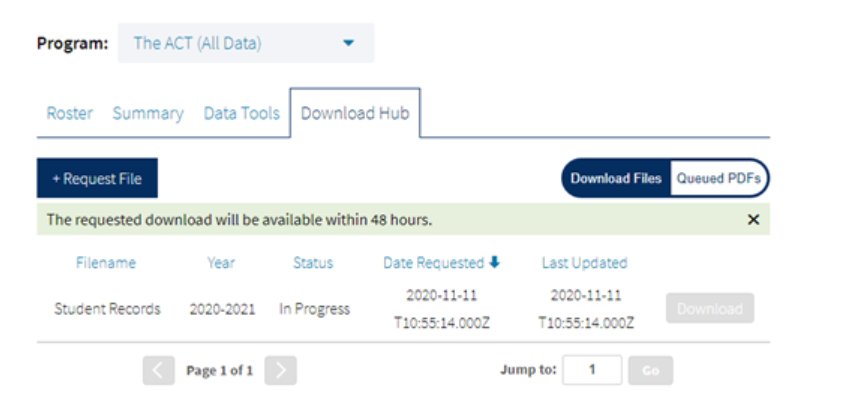
4. On the Download Hub tab select Request file.

You will get a status screen saying that the file may take up to 48 hours. That is unlikely to take that long. The screen does not auto refresh so you will need to navigate away from the screen to the main page and then back to the Download Hub to see the status.
5. Once the file is ready, you will see a Download button next to the file info.
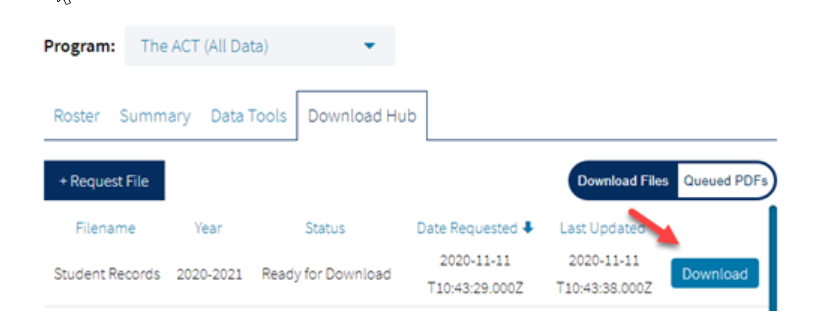
The file will always export out of the ACT system as “StudentData” and it is recommended that users save the file with a unique file name of their choosing.
6. The file will be downloaded which you can send directly to us via the ftp. You do not need to open it before sending as that will sometimes cause dates to become corrupted.
If you do not have credentials for the ftp site, please submit a ticket by clicking the Help arrow in the Proliftic application or send an email to support@proliftic.org to make that request.
Here is a link to the instructions from ACT as well: https://success.act.org/s/article/Downloading-Data-in-Online-Reporting
Attached is the file format for this data file.
Thank you!
Comments
0 comments
Please sign in to leave a comment.